
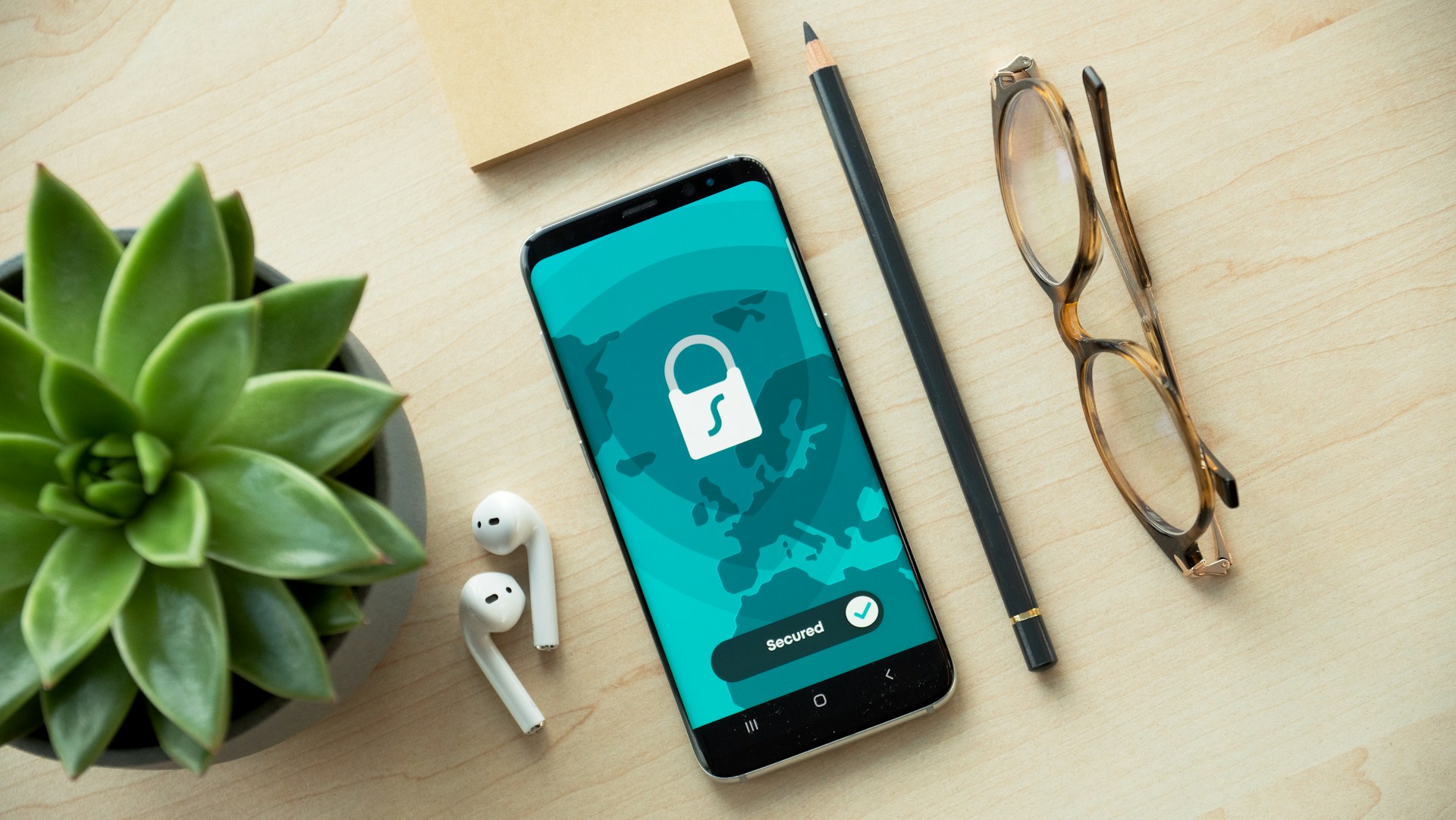
Worried your personal information is being tracked, leaked, or misused online? These practical, expert-backed steps will lock down your privacy and keep your data under your control.
Use Strong, Unique Passwords and a Password Manager
Weak passwords are the most common way accounts get compromised, and reusing the same password multiplies the risk across services. Create long, unique passphrases or random strings for each account to reduce exposure when one site is breached.
Password managers generate and store credentials securely so you never have to remember dozens of logins, and they can fill forms automatically to prevent keystroke logging. Choose a reputable manager with local encryption options and enable its master password protection and backup features.
Pro Tip: Enable a password manager’s auto-fill only on trusted sites or set it to require a master password entry for new logins.
Enable Two-Factor Authentication Everywhere Possible
Two-factor authentication, abbreviated 2FA, adds a second barrier after your password, making account takeover far more difficult. Use time-based one-time codes from an authenticator app rather than SMS when possible, because texts can be intercepted or SIM swapped.
Make a list of critical accounts first, such as email, banking, and cloud storage, and enable 2FA on those immediately. Store recovery codes in a secure location and consider a hardware security key for accounts that support FIDO2 for the strongest protection.
Quick Tip: Keep a locked physical copy of account recovery codes to avoid losing access during a device reset or app loss.
Keep Software and Devices Updated Promptly
Outdated operating systems, apps, and firmware often contain known vulnerabilities that attackers exploit to gain access. Regular updates patch security flaws and improve stability, so set devices to install updates automatically where possible.
Include routers and smart devices in your update routine, not just phones and computers. Check manufacturer sites periodically for firmware releases and apply critical updates quickly for devices that do not auto-update.
Expert Insight: If an update breaks a specific function, delay it for that device but apply the patch to similar devices to minimize risk.
Choose a Privacy-Focused Browser and Use Extensions Carefully
Browsers that block trackers, fingerprinting, and third-party cookies reduce the amount of data that websites can collect about you. Consider browsers that offer robust privacy defaults and a clear privacy policy rather than relying only on add-ons.
Limit browser extensions to a few trusted ones, because each extension can access browsing data and introduce vulnerabilities. Periodically audit and remove extensions you no longer use and only install extensions from verified developers.
Insider Tip: Use a separate browser profile for banking and sensitive logins to reduce cross-site tracking and extension exposure.
Use a VPN on Public and Untrusted Networks
Public Wi-Fi networks are convenient, but they are also hotspots for eavesdropping and session hijacking. A reputable VPN encrypts your connection, masking traffic from local attackers and keeping your data safe on public networks.
Pick a VPN provider with a no-logs policy that publishes audits or legal transparency reports, and avoid free services that may monetize your data. Keep the VPN enabled for any app that sends personal or financial information while outside your home network.
Heads Up: A VPN does not make you anonymous on websites where you log in, so combine it with other privacy steps like minimal sharing and tracker blockers.
Practice Safe Email and Phishing Hygiene
Phishing emails remain one of the most effective ways attackers steal credentials and install malware. Train yourself to check sender addresses, hover over links to preview destinations, and avoid opening attachments from unknown or unexpected senders.
Use email filters and spam settings to reduce risky messages, and consider isolating work and personal email accounts to limit impact. If an email triggers suspicion, contact the sender through a verified channel before clicking links or providing credentials.
Worth Knowing: Use an email alias or disposable address for signups to keep your main inbox free from tracking and spam.
Limit Social Media Sharing and Tighten Privacy Settings
Personal details posted publicly can be used for social engineering and identity theft. Audit your profiles to remove sensitive data like birthdays, home addresses, phone numbers, and real-time location sharing.
Adjust privacy controls so posts and friend lists are visible only to trusted people, and review app permissions connected to your social accounts to revoke access for apps you no longer use. Treat social media like a public billboard and assume screenshots are permanent.
Pro Tip: Use privacy checkup tools offered by platforms every few months to catch changes in default settings after updates.
Secure Your Home Network and IoT Devices
Your router is the gateway to everything on your network, so change default admin passwords, update firmware, and disable remote administration if you do not use it. Segment your network with a guest SSID for visitors and an isolated network for cameras and smart devices.
Rename default device names and review each IoT item’s permissions and cloud connections. If a device cannot receive updates or lacks basic security features, consider replacing it with a model from a manufacturer that commits to long-term support.
Quick Tip: Place cameras and voice assistants on a separate subnet to limit lateral movement if one device is compromised.
Encrypt Sensitive Data and Back Up Regularly
Encryption protects stored data if a device is lost or stolen, so enable full-disk encryption on laptops and mobile devices and use encrypted containers for particularly sensitive files. Many operating systems include built-in encryption tools that are easy to enable.
Combine encryption with a robust backup strategy: keep two or three copies of important data, store backups offline or encrypted in the cloud, and test restore processes periodically. Backups make recovery from ransomware or device failure much faster and less painful.
Expert Insight: Use versioned backups to recover pre-encryption copies if you fall victim to ransomware, and keep one backup physically disconnected from your network.
Review and Minimize App and Service Permissions
Apps often request access to more data than they need, such as contacts, location, or microphone access. Audit permissions on phones and tablets and revoke anything that is not essential for core functionality.
When signing up for services, use the minimum data required and avoid linking unnecessary accounts. Periodically review connected apps and revoke access for services you no longer use to reduce long-term exposure.
Insider Tip: On mobile devices, set location permissions to “only while using” rather than “always” to limit background tracking.
Final Steps: Build a Habit of Privacy
Secure defaults are only useful if you maintain them, so incorporate weekly or monthly privacy checks into your routine to update passwords, review permissions, and apply patches. Treat privacy like maintenance, not a one-time project, and your risk will drop significantly over time.
Share these practices with family and colleagues, because a weak link in a shared environment can expose everyone. Which one change will you take this week to improve your online privacy?